Getting Started
Download
Windows: HappinessMP Server 2.4 Windows.zip (Last updated: 2026-10-07)
Linux: HappinessMP Server 2.4 Linux.zip (Ubuntu 22.04, Last updated: 2026-10-07)
Windows installation
- Download server files from Download section.
- Extract the ZIP archive.
- Configure the settings.xml according to your needs (see Settings for more info).
- Run
HappinessMP.Server.exe.
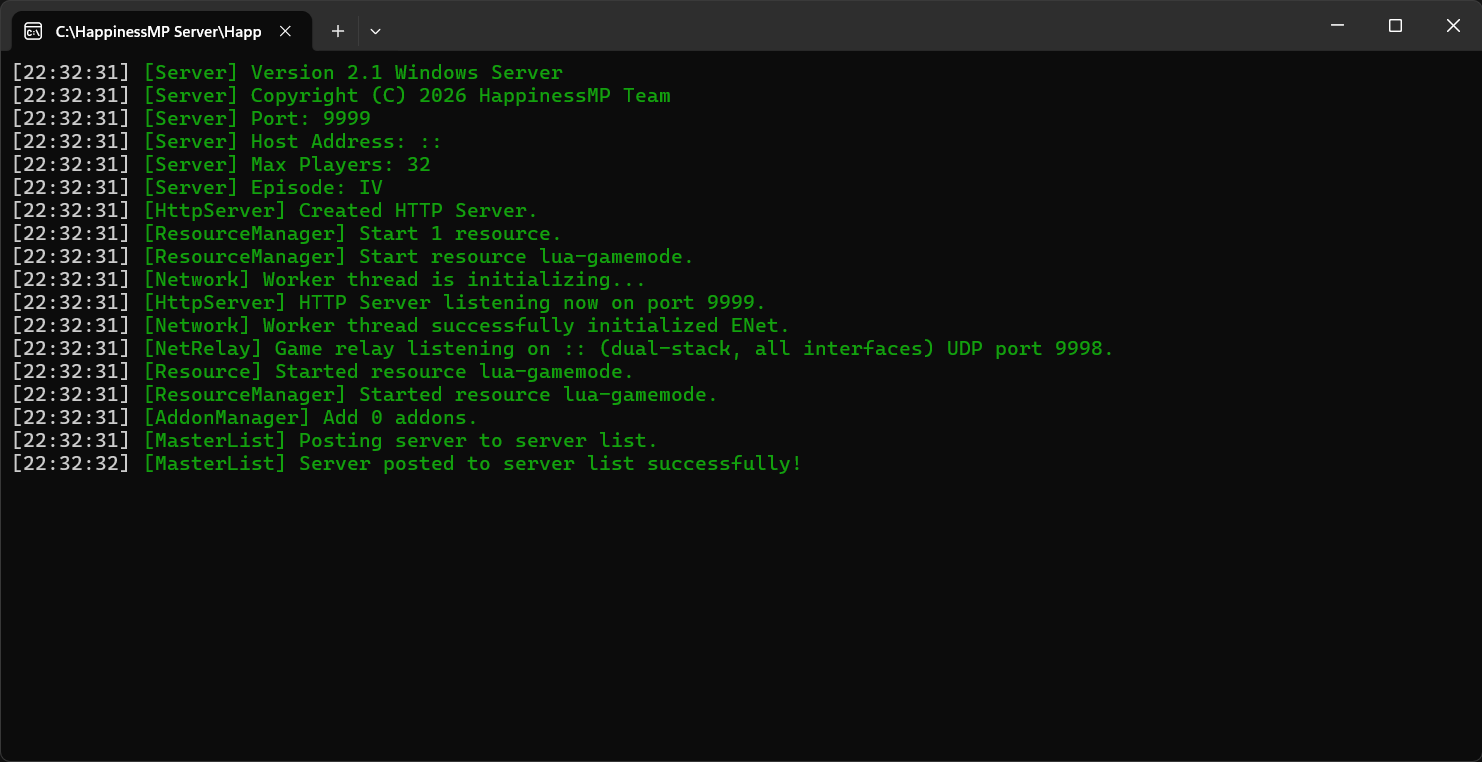
Linux installation
- Download server files from Download section.
- Extract the ZIP archive:
unzip "HappinessMP Server 2.4 Linux.zip" -d happinessmp-servercd happinessmp-server
- Configure the settings.xml according to your needs (see Settings for more info).
- Make the server binary executable:
chmod +x HappinessMP.Server.out
- Run the server:
./HappinessMP.Server.out
Ports
If you want your server to be reachable from the internet, you have to open the following ports in your firewall and forward them in your router:
| Port | Protocol | Description |
|---|---|---|
| 9999 (default) | UDP and TCP | Main port. Handles the general communication between client and server as well as the HTTP server. |
| 9998 (default) | UDP | Relay port. Mainly used for the exchange of game sync packets. |
Both ports have to be open, otherwise players will not be able to join. If you changed the port in your settings.xml, open your configured ports instead of the defaults.
Example for Linux with ufw:
sudo ufw allow 9999/tcp
sudo ufw allow 9999/udp
sudo ufw allow 9998/udp
On Windows you can add the rules via Windows Defender Firewall → Advanced settings → Inbound Rules → New Rule.
Connect to my server
Either simply connect via the server list or use 127.0.0.1 on the direct connect page in the launcher.